Weighbridge & waste management software Every load, tracked from gate to gate.
OpenWeigh Waste runs the weighbridge ticket, the waste record and the Digital Waste Tracking receipt as one record per load — for UK transfer stations, recycling sites and skip operators.
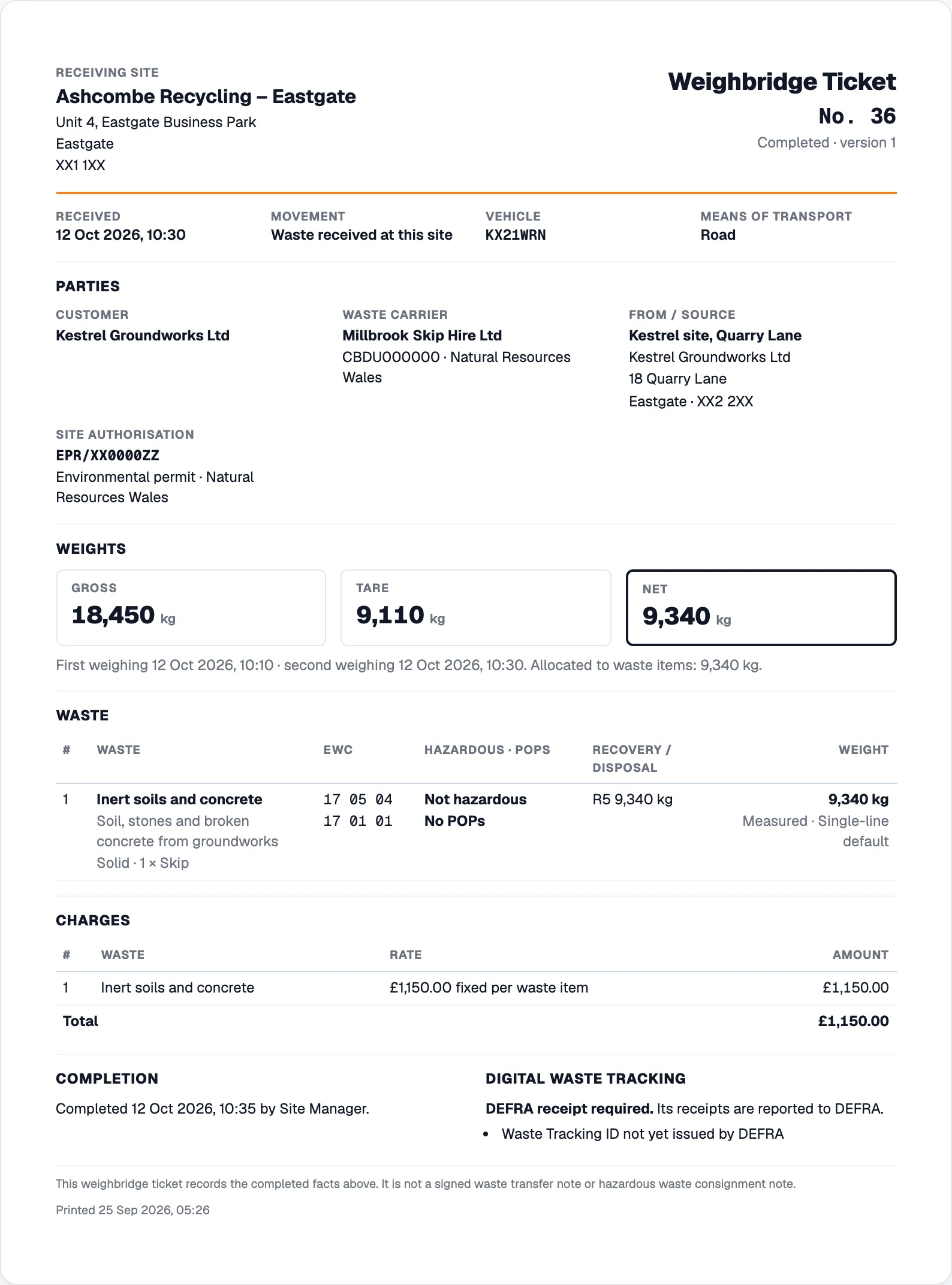
- GrossFirst weighing · 10:10
- 18,450kg
- TareSecond weighing · 10:30
- 9,110kg
- NetGross − tare, to the waste items
- 9,340kg
Both weighings are bridge readings. The same ticket is shown below.
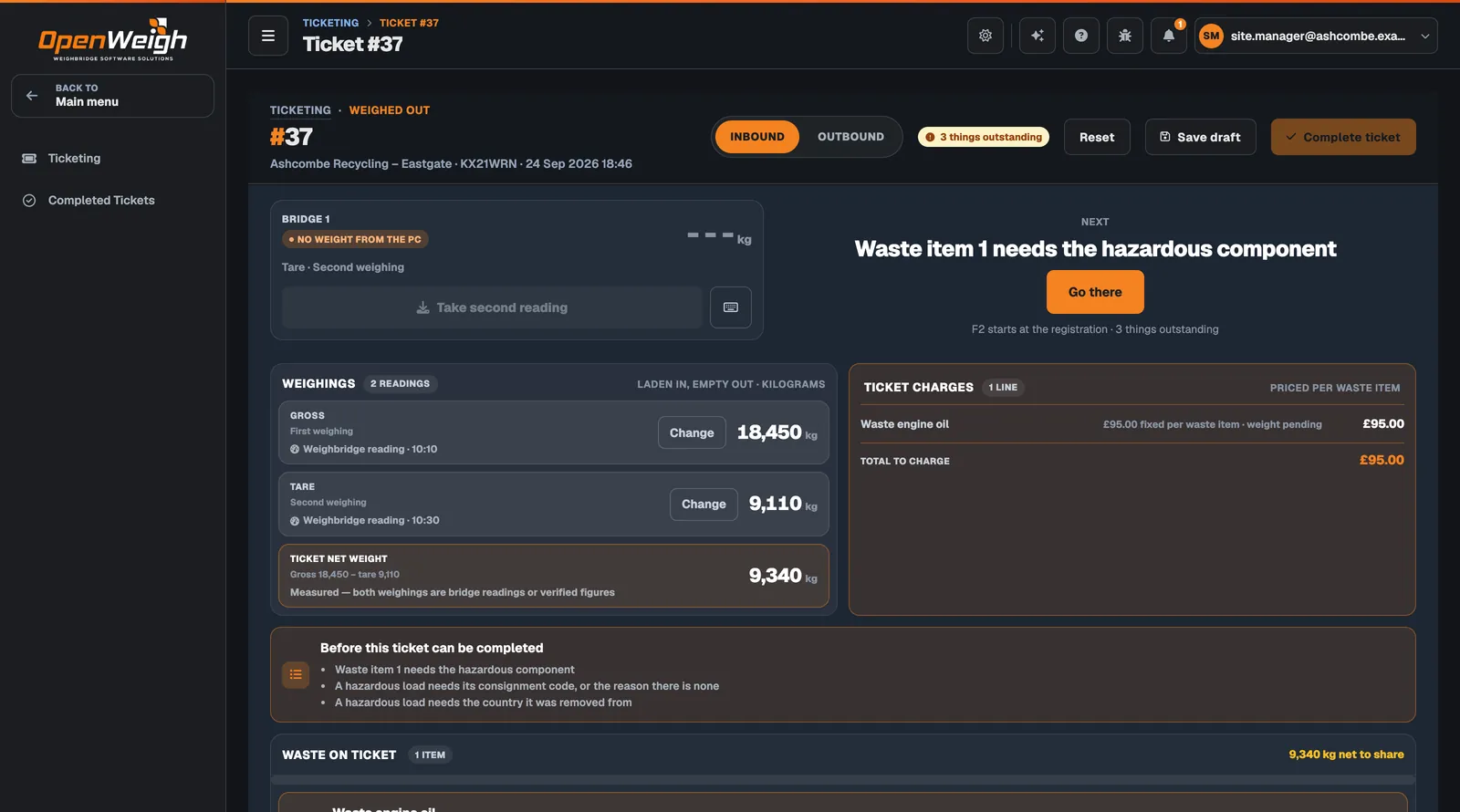
- Weighings with provenanceGross and tare each say where they came from — a weighbridge reading and its time.
- Measured net weightWorked out from two bridge readings, then shared across the waste on the ticket.
- The next thing to doOne instruction, one button: the screen takes the operator to what is missing.
- Nothing completes half-doneEverything outstanding is listed before the ticket can be completed.
How it works
One load, start to finish, in one record.
From the registration to the Digital Waste Tracking receipt, a load stays one record. Screens are from OpenWeigh Waste; names in them are fictional.
-
01 · Arrive
The ticket starts at the registration
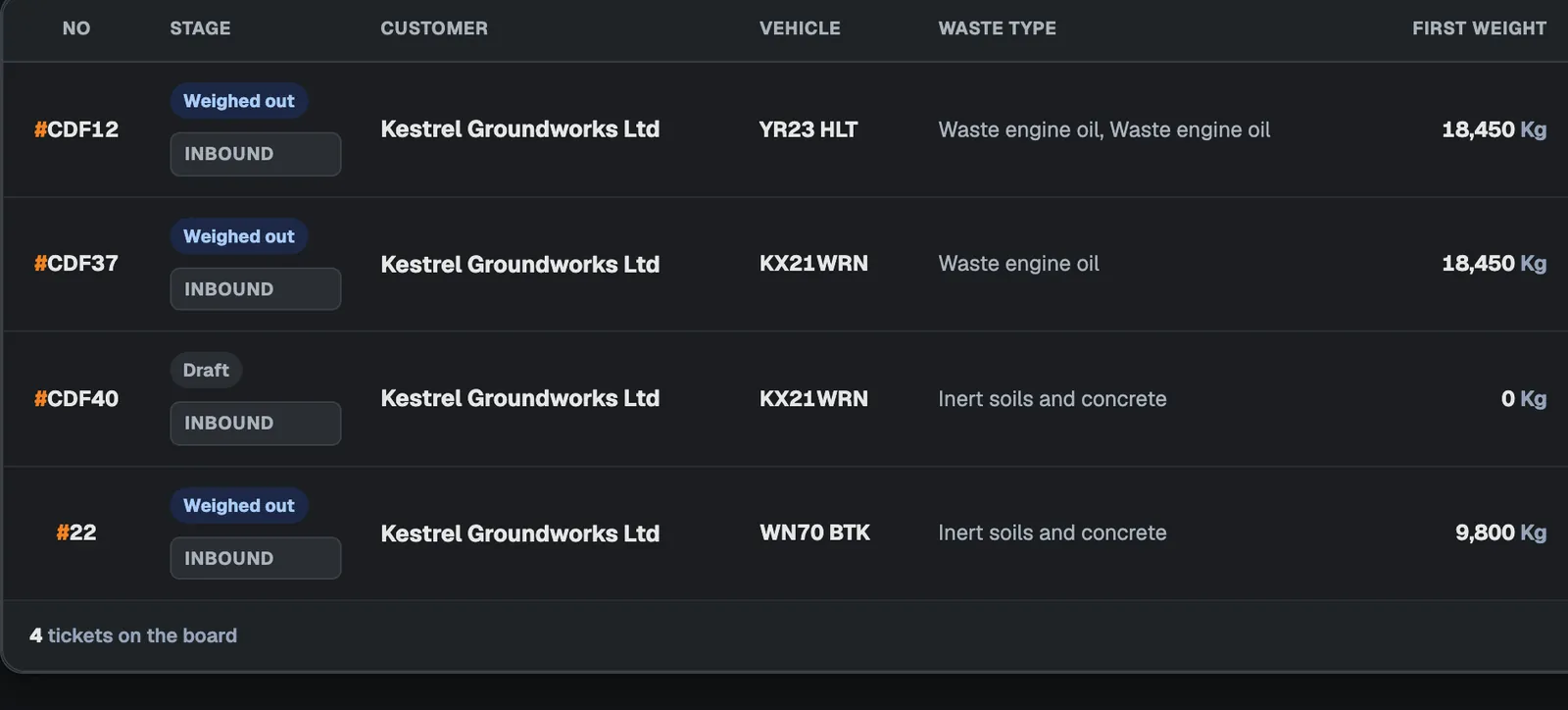
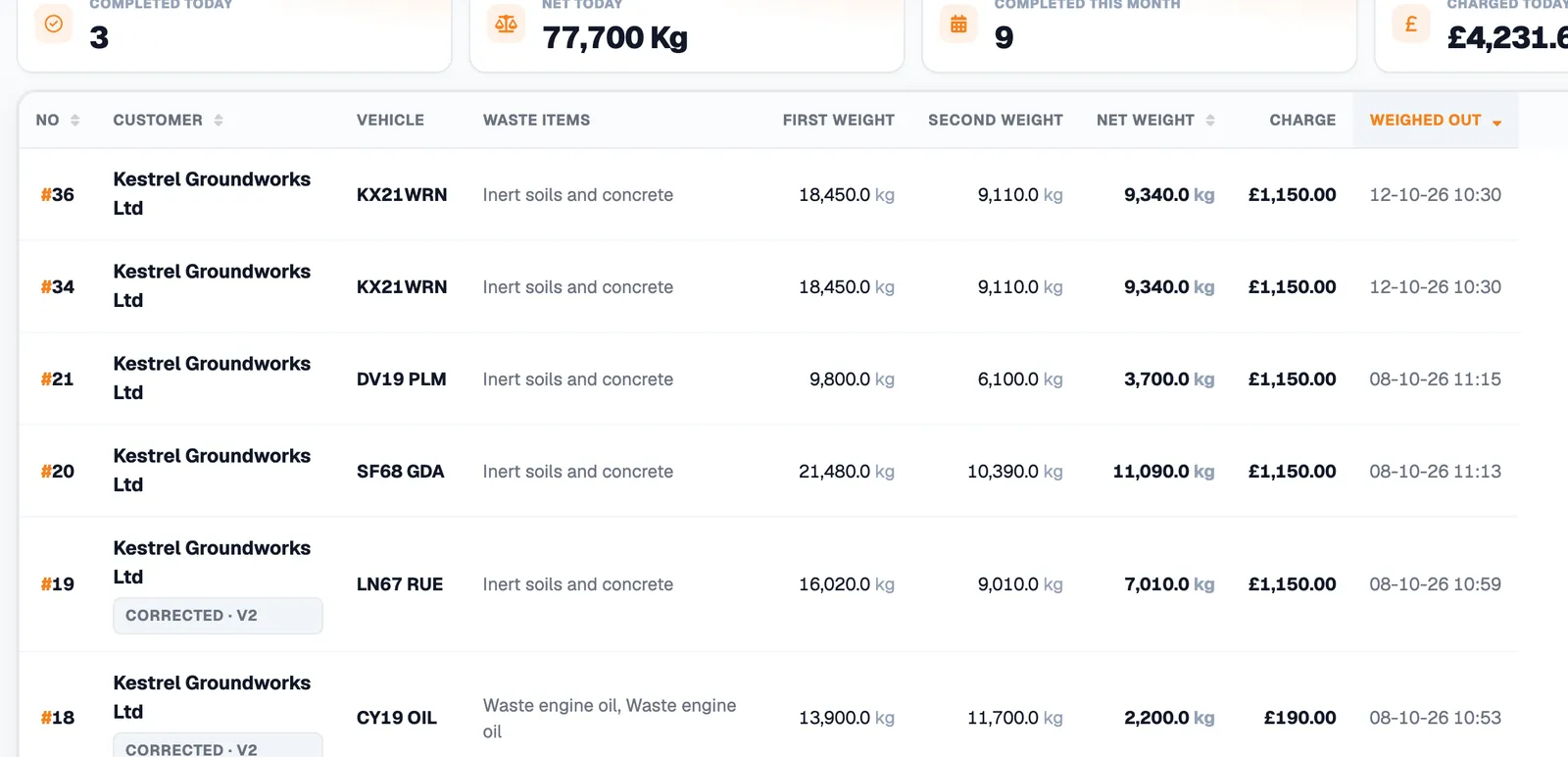
A vehicle pulls on and the operator opens a ticket from its registration or customer. The Ticketing board shows every open load by stage, with today’s tickets and net weight above it.
-
02 · Weigh
Weighed in, weighed out
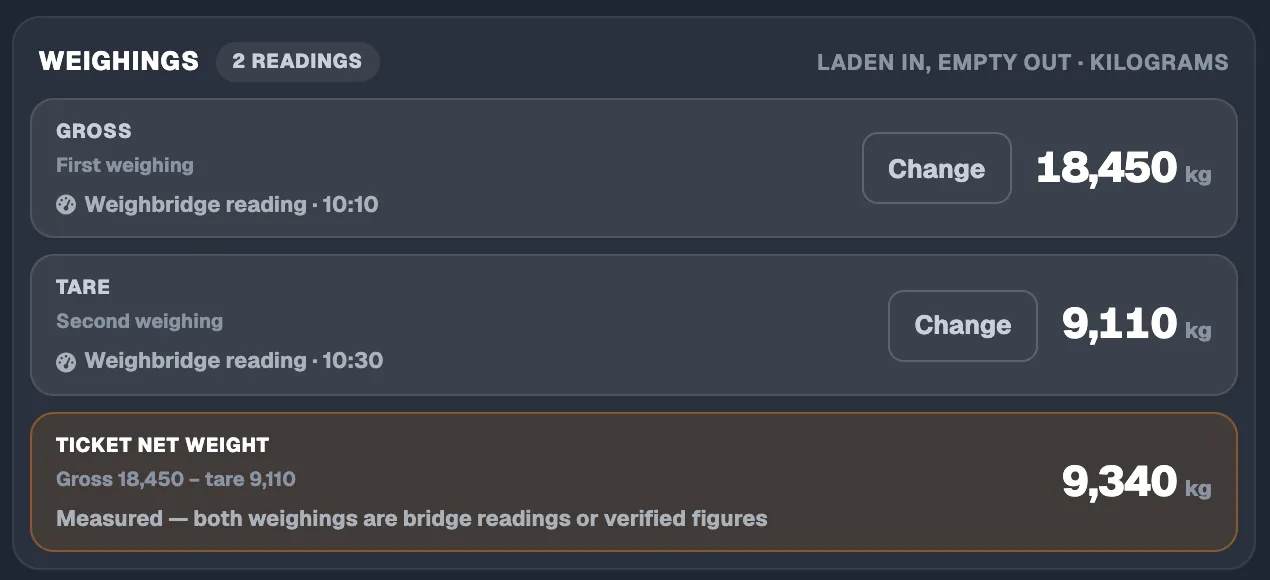
The first weighing records the laden vehicle and the second records it empty — or the vehicle’s stored tare is used instead. Each figure carries where it came from and when.
-
03 · Describe
The waste, described properly
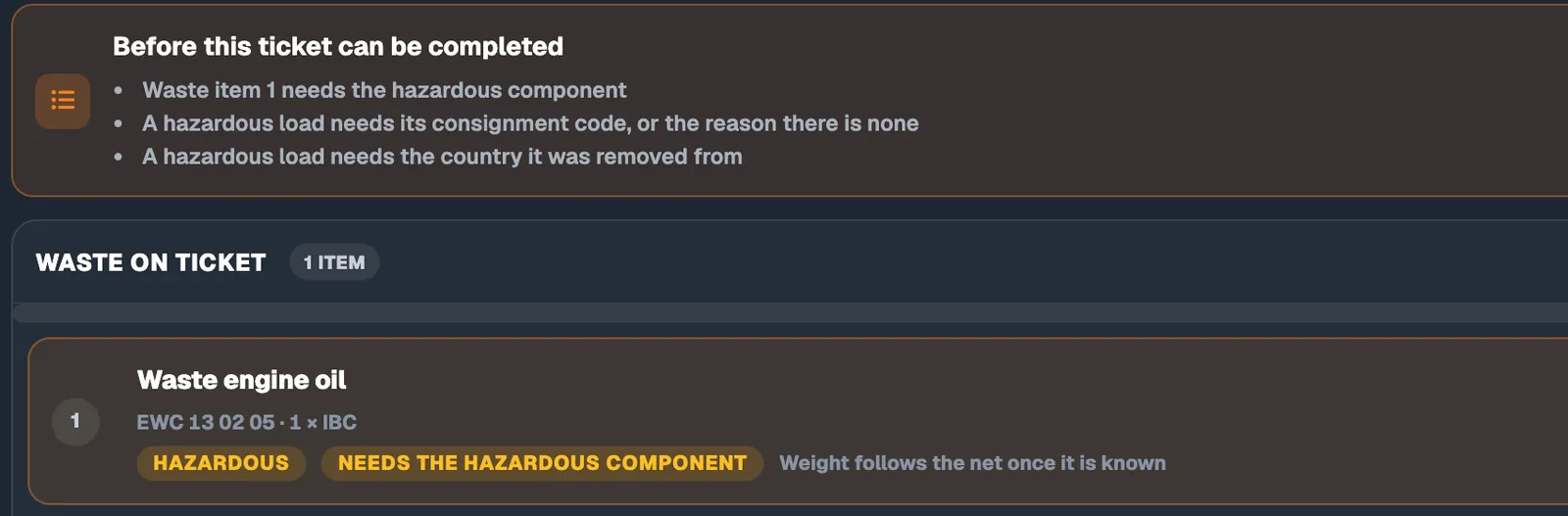
Each load carries one or more waste items started from your waste types: description, EWC code, container, hazardous properties and POPs. The net weight is shared across items and each share records how it was made.
-
04 · Complete
Complete only when nothing is missing
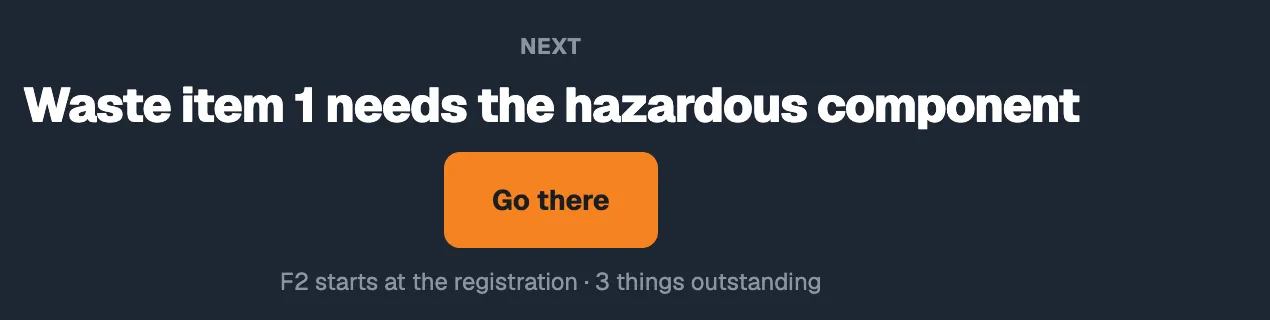
Before a ticket can be completed, OpenWeigh names what is outstanding — a hazardous component, a consignment code, the country the waste came from — and takes the operator straight to it.
-
05 · Charge & print
Priced and printed
The charge comes from the rate in force for that customer and site. The printed weighbridge ticket carries the parties, the site authorisation, both weights and the waste with its EWC, hazardous, POPs and recovery or disposal details.
-
06 · Report
A Digital Waste Tracking receipt, prepared
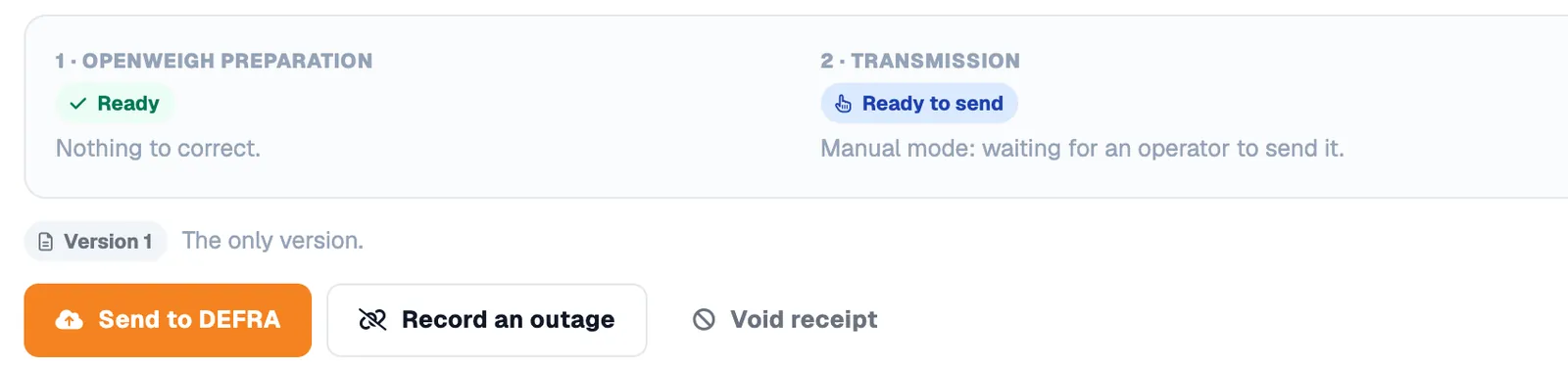
Completing the ticket prepares its receipt of waste for DEFRA’s Digital Waste Tracking service, with its statutory deadline, and shows each stage: OpenWeigh’s preparation, the transmission and DEFRA’s response.
-
07 · Find
Every load, findable afterwards
Completed tickets are searchable by ticket number, customer or registration. A correction becomes a new version of the ticket; the version it replaces is kept.


Weighbridge operations
Built to be read at the weighbridge window.
Operators see what is on site, what has weighed out and what is still a draft — and the figures that matter are large enough to read standing up.
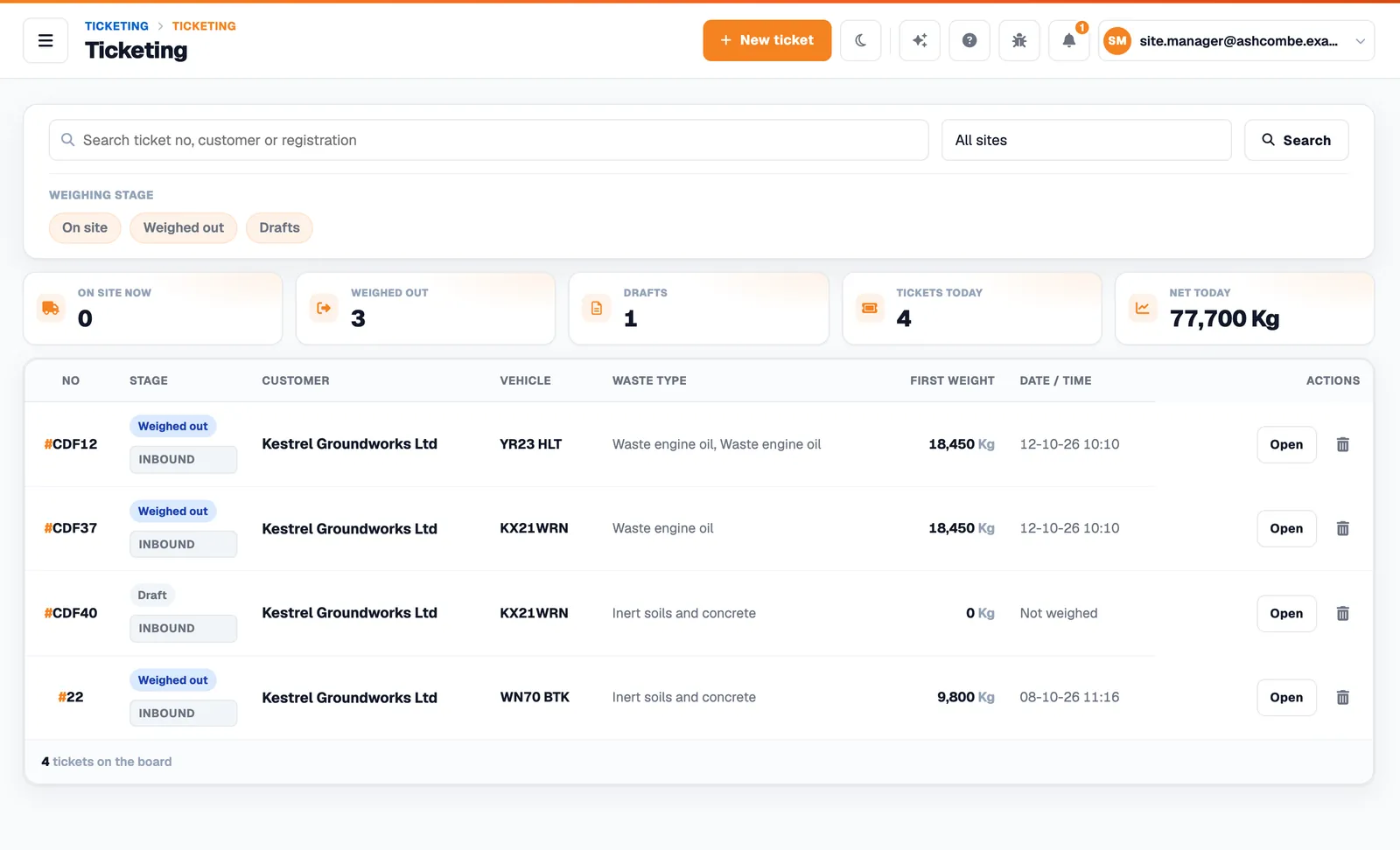
- Stages at a glance. On site, weighed out and drafts, with today’s tickets and net tonnage.
- Keyboard first. F2 jumps to the registration from anywhere on the ticket.
- One search. Find a ticket by its number, the customer or the registration.
- Phone and kiosk ready. Below tablet width, lists become cards with touch targets of at least 44px.
Digital Waste Tracking
The receipt is prepared from the ticket you already complete.
Digital Waste Tracking reporting begins on 1 October 2026 for in-scope sites receiving waste in England and Wales. OpenWeigh turns each completed ticket into a receipt of waste and keeps the clock on it.
Live service statusDEFRA’s production approval of OpenWeigh is in progress. Until it is complete, receipts are prepared, deadlined and held on DWT Submissions, and can be rehearsed against DEFRA’s test service. Each receiving business registers with DEFRA and adds its own receiver API code.
- Mon12 OctWaste received 10:30
- Tue13 OctWorking day 1
- Wed14 OctDue 23:59 · working day 2
- Thu15 OctOverdue if not accepted
Weekends and England and Wales bank holidays are excluded, as the receipt itself explains on screen.
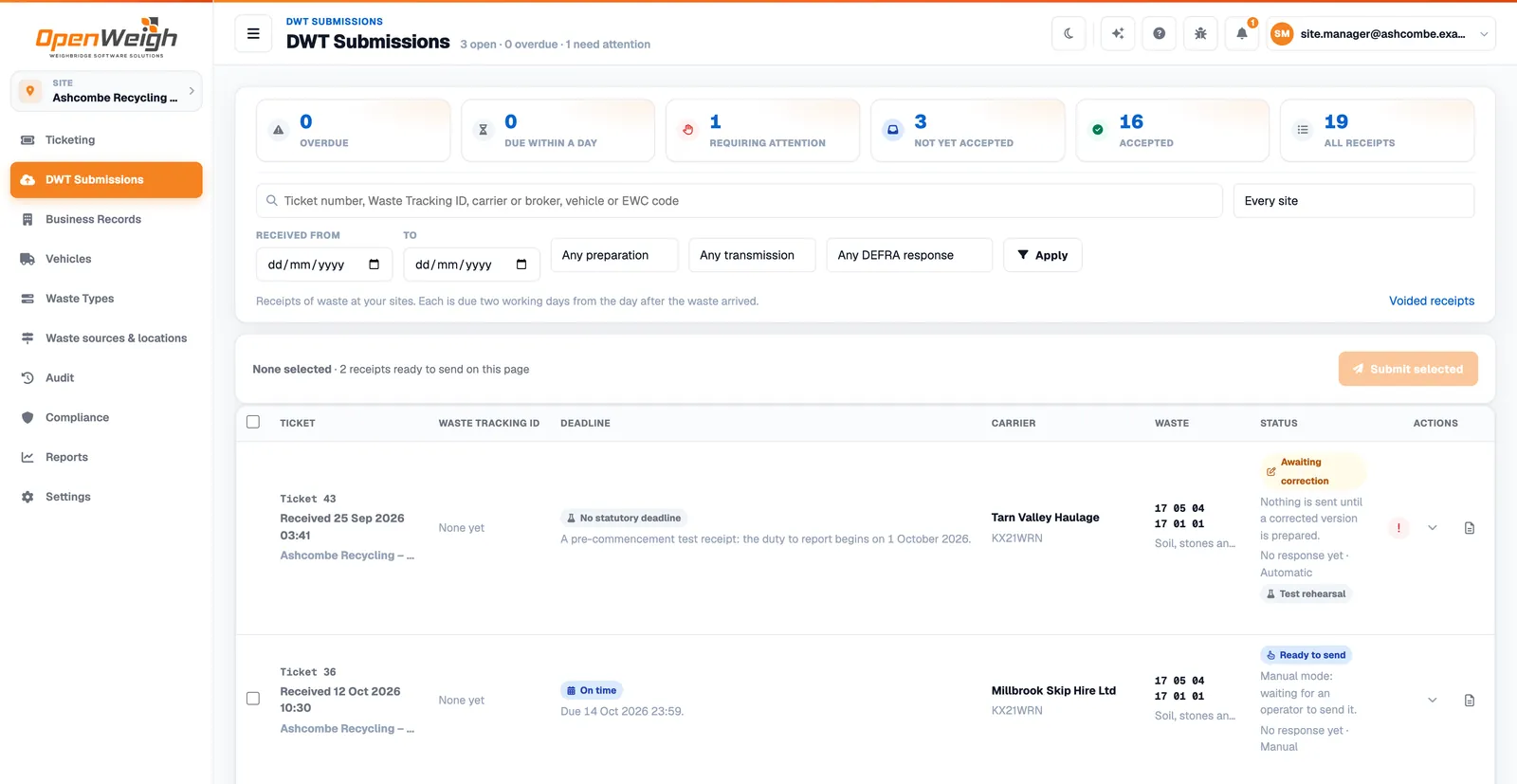
The receipt ledger: what is overdue, what is due within a day, what needs a person and what DEFRA has accepted.
Free trial
Start your free trial online, today.
Create your account in the browser, confirm your email and OpenWeigh walks you through setting up your company and first site.
- 01
Create your account
Company or account name, your name, a work email and a password. Telephone is optional. No card details are asked for.
- 02
Confirm your email
We send a link to the address you gave. It works once and lasts 24 hours, and becomes your sign-in name.
- 03
Follow the guided setup
Nine short steps from your company to your first ticket. Some can wait until you are ready.
- Your accountCreated at sign-up, with you as administratorDone
- Find your siteYour permit or exemption, from the regulator’s public registerCan wait
- My CompanyThe legal business that receives the waste
- Your siteThe name and full address waste arrives at
- Digital waste trackingThe receiver code DEFRA’s service issues to youCan wait
- First waste typeIts EWC codes and description
- First customerWho the waste comes from
- WeighbridgeUntil then, weights can be entered by handOptional
- Ready to weighWhat is in place and what is still to do
Waste and compliance data
Classified once. Right on every load after.
A waste type holds what a load of that waste should say. Each new waste item starts from it, so the operator confirms rather than retypes.
- Waste type
- Waste engine oil Active
- EWC code
- 13 02 05 Hazardous
mineral-based non-chlorinated engine, gear and lubricating oils - Description
- Mineral-based engine oil, drained from vehicles
- Form · container
- Liquid · IBC
- Hazardous
- Hazardous property codes and components
- POPs
- No POPs
- Rate
- £95.00 fixed per waste item · every customer and site
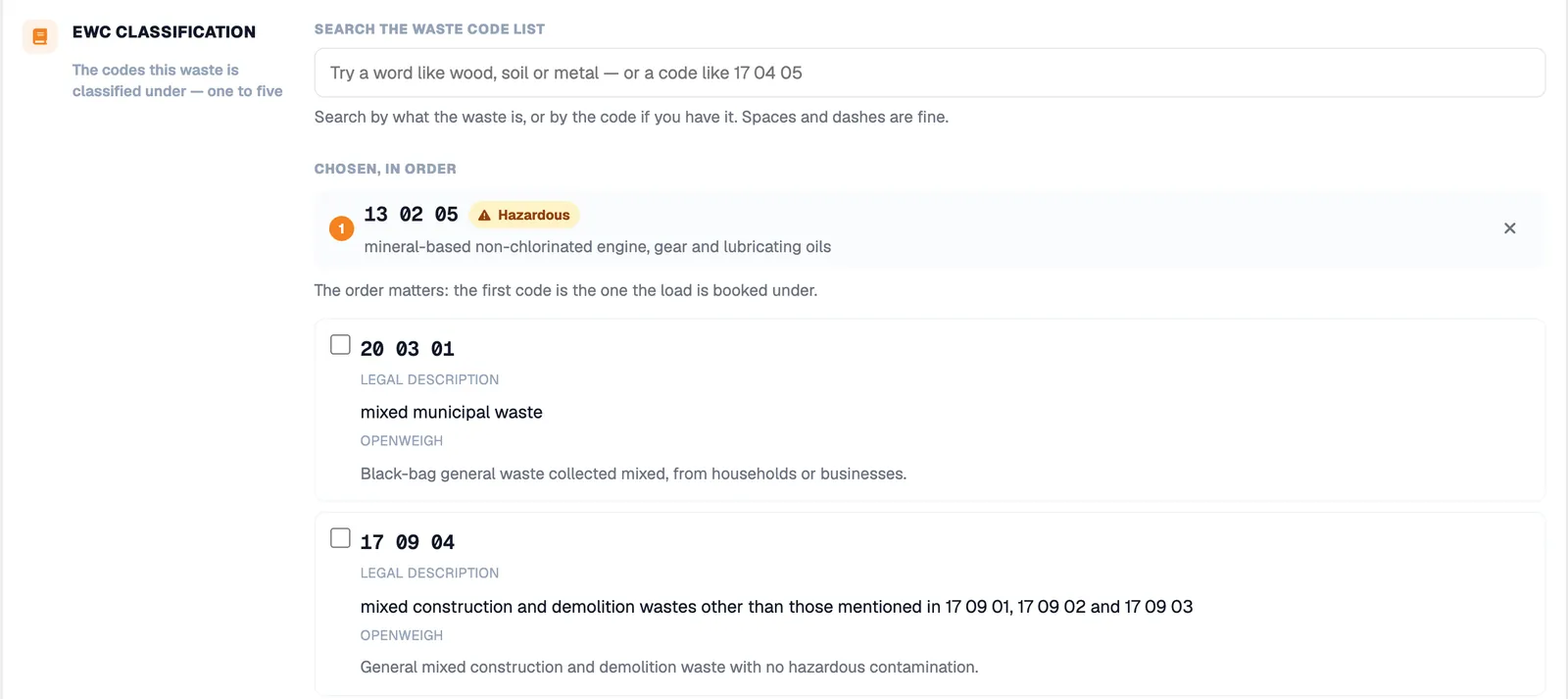
- The List of Waste, searched. Find a code by what the waste is or by the code itself; the legal description comes from DEFRA’s reference data.
- Codes in order. One to five EWC codes per waste type — the first is the one the load is booked under.
- Site acceptance. Record which EWC codes each site accepts and the recovery or disposal code it applies.
Customers, carriers, producers, brokers
One business search finds an organisation once, and its roles — customer, supplier, waste carrier, waste producer, broker or dealer — hang off the same record.
Checked against the register
Carrier and broker/dealer registrations and site permits are checked against the public registers where a register can be asked, and re-checked by a sweep every 24 hours.
Not confirmed is not failed
A register that did not answer, or a number it did not list, is shown as exactly that. A format check is never presented as regulator-verified.
Hardware
Your weighbridge stays on your network.
OpenWeigh reads the indicator through the Weight Agent, a Windows service on a PC at the site. The agent connects outward, so there is no VPN to run and no inbound port to open.
Weighbridge indicator
Your existing indicator and load cells.
Weight Agent
A Windows service on a PC at the site that reads the indicator.
Weight Gateway
Receives readings from each site’s agent.
Ticket screen
The reading arrives on the ticket, in the browser.
Readings travel from the weighbridge indicator over RS-232 or Ethernet to the Weight Agent on a site PC, then over an outbound secure WebSocket to the OpenWeigh Weight Gateway, and on to the ticket screen in the browser.
Connections: RS-232 serial or Ethernet (TCP) to the indicator.
Network: outbound only — no VPN, no inbound ports.
Browser: never talks to the indicator directly.
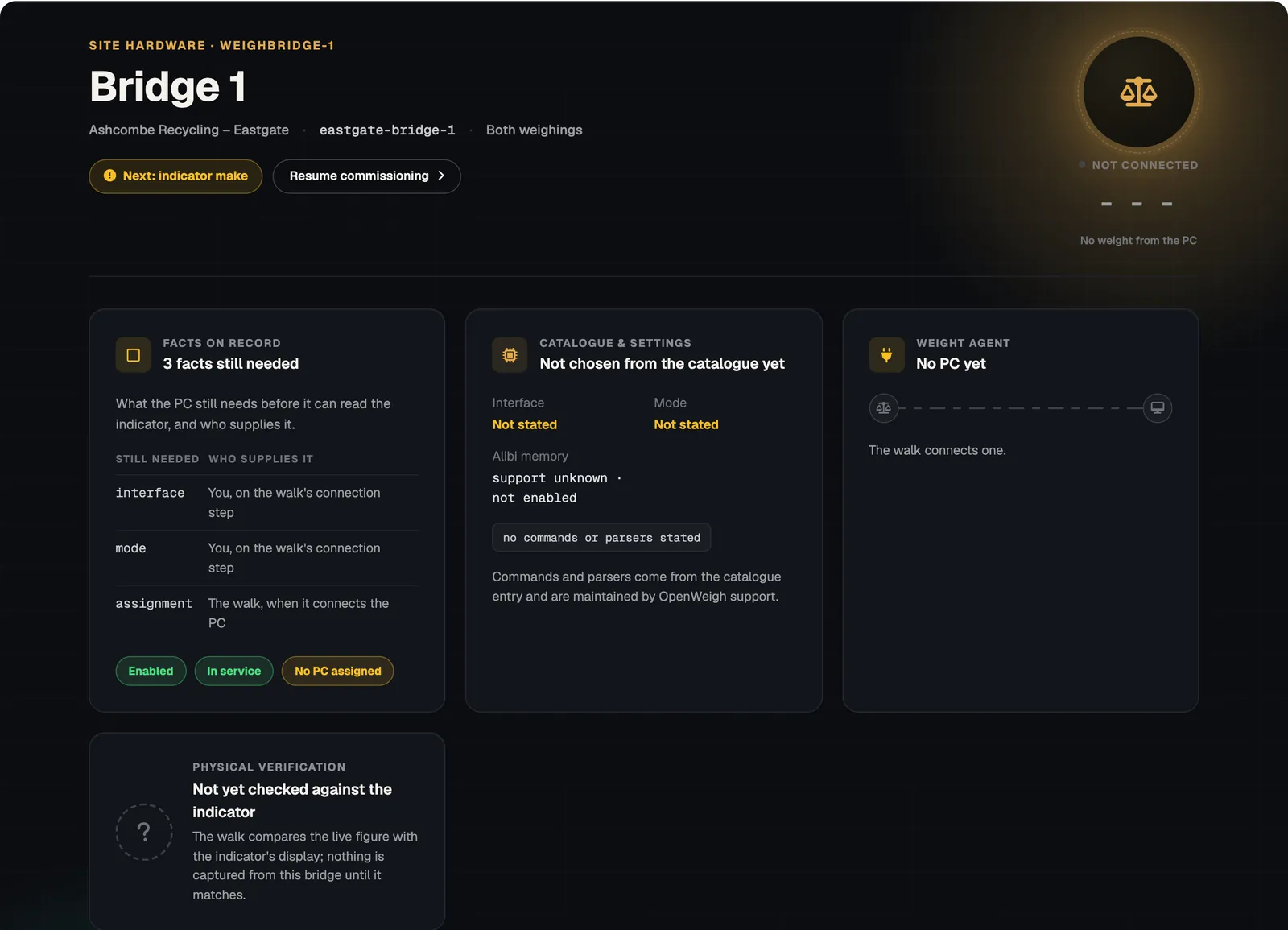
Commissioned, then checked against the indicator.
A guided walk records how each weighbridge connects. Before a bridge’s readings are used, the live figure is compared with the indicator’s own display. Until a bridge is connected, weights can be entered by hand and are labelled that way.
Why OpenWeigh
Four rules the software keeps.
History is kept, not tidied
A completed ticket changes only by a new version. Records are archived rather than deleted, so an audit finds what was there.
Evidence stays evidence
Weighbridge readings that no ticket claims stay in the Bridge Log for audit and review.
Each role gets its own access
Account Administrator, Supervisor, Auditor and Operator, with permissions such as overriding a ticket charge or submitting waste tracking.
One account, several sites
Each site keeps its own details, authorisations and weighbridges under one account.
Do I need to install anything?
No. OpenWeigh Waste runs in the browser. To take readings from a weighbridge, the Weight Agent runs as a Windows service on a PC at the site. Until it is connected, weights can be entered by hand.
Will it work with my weighbridge indicator?
Indicators connect over RS-232 or Ethernet (TCP). Every installation is commissioned and checked against the indicator’s own display before its weights are used. Tell us your indicator make and model before you plan the connection.
Does OpenWeigh make my site compliant?
No software can do that for you. OpenWeigh helps you capture the information each load needs, keeps it as a structured record and prepares your Digital Waste Tracking receipts. Responsibility for what is recorded and reported stays with the operator.
Is Digital Waste Tracking included?
Yes. Every applicable completed ticket prepares a receipt of waste with its deadline. You register with DEFRA and add your own receiver API code. Sending to DEFRA’s live service follows DEFRA’s production approval of OpenWeigh, which is in progress.
Do I need a card to sign up?
No card details are asked for when you create your account. You confirm your email address, then a guided setup takes you through your company, site and first waste type.
Get started
Ready for the next load on the bridge?
Sign up online, set up your first site and put your next ticket through OpenWeigh Waste.
Already using OpenWeigh? Sign in